Flash your radio
BoxOnPost is a free upgrade for compatible MeshCore radios. Pick yours below: Heltec radios flash straight from this website in Chrome or Edge, others install by drag and drop. Your contacts and settings are kept.
Latest release
Ready to download: Heltec V4 (small screen), Heltec V4 R8 (small screen), Heltec V4 (touch screen), Heltec V3 and ThinkNode M1.
Being tested: Heltec V4 R8 (touch screen), Heltec T114, ThinkNode M2, ThinkNode M3, ThinkNode M4, ThinkNode M5, ThinkNode M7, ThinkNode M9, Heltec Wireless Tracker, RAK WisBlock (RAK4631), RAK WisMesh Tag, Seeed SenseCAP T1000-E, Seeed Wio Tracker L1, LILYGO T-Beam Supreme and LILYGO T-Deck Plus. Each one opens for download once it's been run on real hardware.
Choose your radio
Before you install, save a copy of your private key: it's step 1 on every radio's page, and the full backup steps are below.
No radio matches that. Try the brand name, or see all supported radios.
Heltec
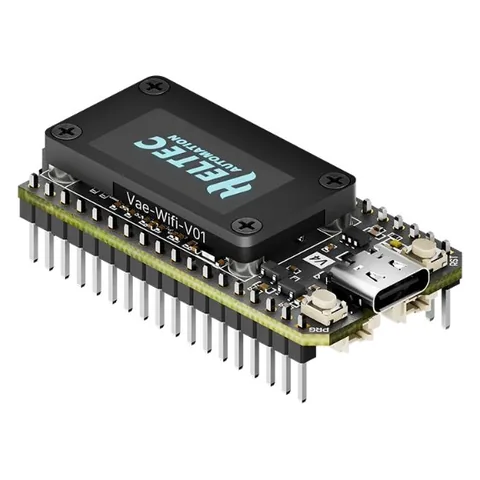
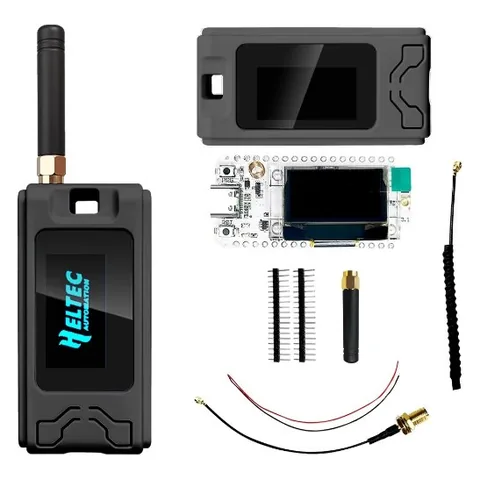
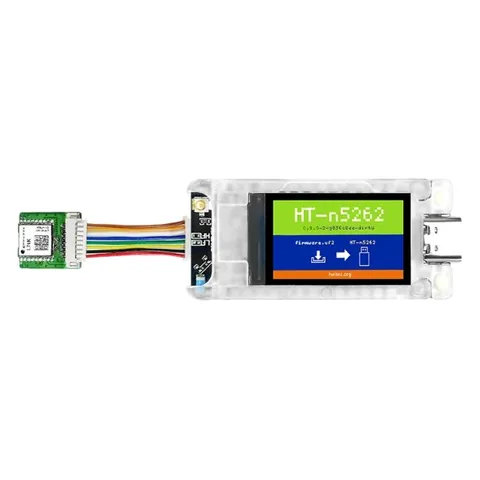
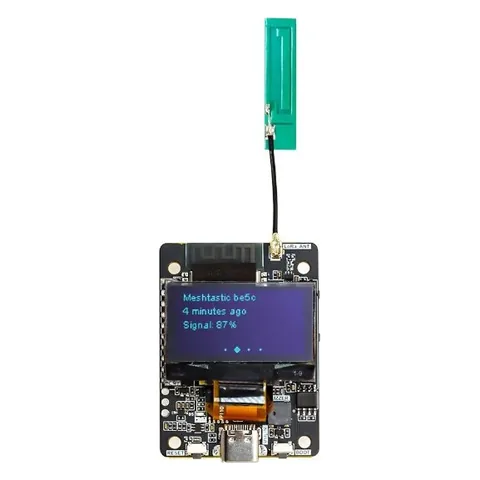
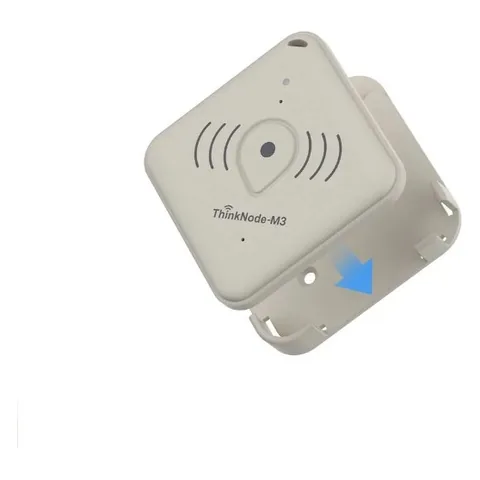
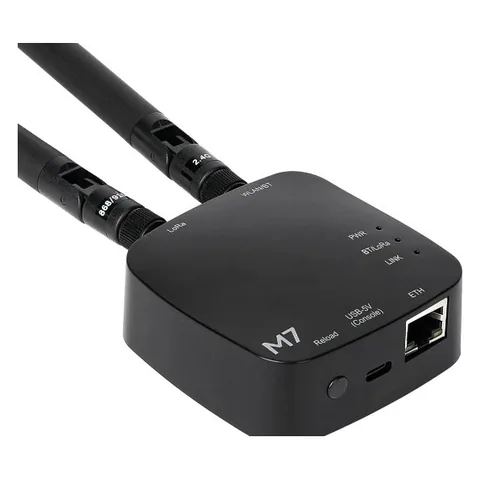
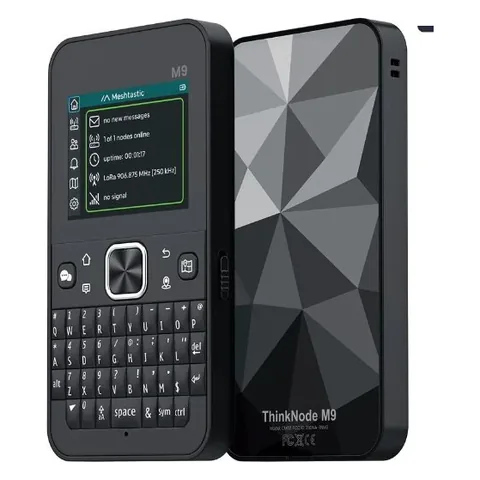
ThinkNode
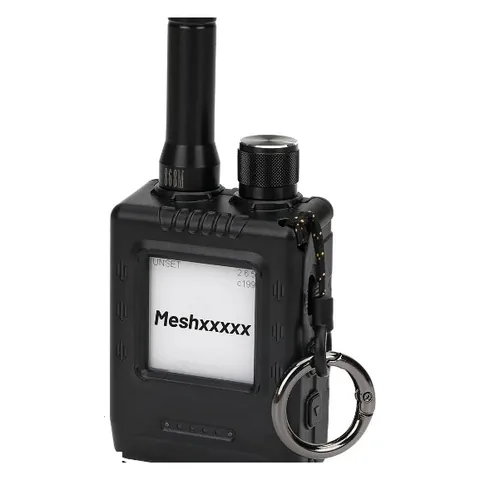
RAK
Seeed
Not sure which radio you have?
- The MeshCore app shows your radio's model in its settings.
- Heltec V4 vs V4 R8: the R8 has “R8” printed on the board and the box.
- Heltec T114: a small square board, with or without a colour screen. It's a different chip from the V3/V4.
- ThinkNode: the model (M1, M2…) is on the label on the back of the case.
Two ways to install
Heltec V4, Heltec V3, ThinkNode M2, ThinkNode M5, ThinkNode M7, ThinkNode M9, Heltec Wireless Tracker, LILYGO T-Beam Supreme and LILYGO T-Deck Plus flash from your browser, right on this website: plug in by USB and click Flash on the radio's page. Chrome or Edge on a computer.
Heltec T114, ThinkNode M1, ThinkNode M3, ThinkNode M4, RAK WisBlock (RAK4631), RAK WisMesh Tag, Seeed SenseCAP T1000-E and Seeed Wio Tracker L1 install by drag and drop: the radio shows up as a USB drive and you copy one file onto it. Any computer works.
Each radio's page shows the right steps.
Back up your node
An UPDATE install keeps your identity, contacts and settings, so you normally lose nothing. A backup is your safety net in case something goes wrong, like "Erase device" being ticked by mistake. It takes about five minutes.
- Save your node's identity (private key). Connect the MeshCore app to your node, open Settings and choose Export private key. Store it somewhere private, like a password manager. Never post it or send it to anyone: whoever has it can pose as your node.
- Write down your settings. Node name, radio settings (frequency, bandwidth, spreading factor, coding rate) and transmit power. A screenshot of the settings screens works.
- Note your private channels. For each private channel, save its name and its key or share code so you can rejoin it.
- Keep your important contacts. Share or export the contacts you can't easily get back. Others reappear on their own the next time they advertise.
If you ever need to restore
After a fresh install, connect the app, choose Import private key in Settings and paste the key you saved. Your node gets its old identity back, so your contacts still recognise it. Then re-enter your settings and channels.
Menu names can differ a little between app versions. Your conversations are stored in the phone app, so reinstalling the node doesn't remove them.